
Product developers often freeze customer systems until security signs off. That freeze is necessary. It does not stop an assistant from sounding current while it is working from a partial tool result or an outdated one. The customer experience problem starts as soon as tool-backed answers are allowed in a pilot, design partner session, or internal dogfood path.
This article owns a narrow job: teach you to tell incomplete tool payloads apart from stale ones, write down what each feels like to the person on the other side of the chat, and run a pre-customer-data verification script on one non-customer app connection before you widen access. It is not a general tour of AI app integrations, not a token-expiry runbook, and not a substitute for the suite topics that already cover broad stale-context harm or pure diagnosis sandboxes. The deliverable is a script you can paste into an evaluation ticket.
Answer up front
When tool failures leave the assistant with incomplete context, customers experience surprising gaps and overconfident guesses. When tool failures leave stale context, customers experience precise answers that disagree with the live system they open next. In both cases the product still “works”: the UI is calm, the reply is fluent, and there is often no red banner. Trust erodes through restated facts, escalations, and quiet refusal to ask the assistant about systems of record again.
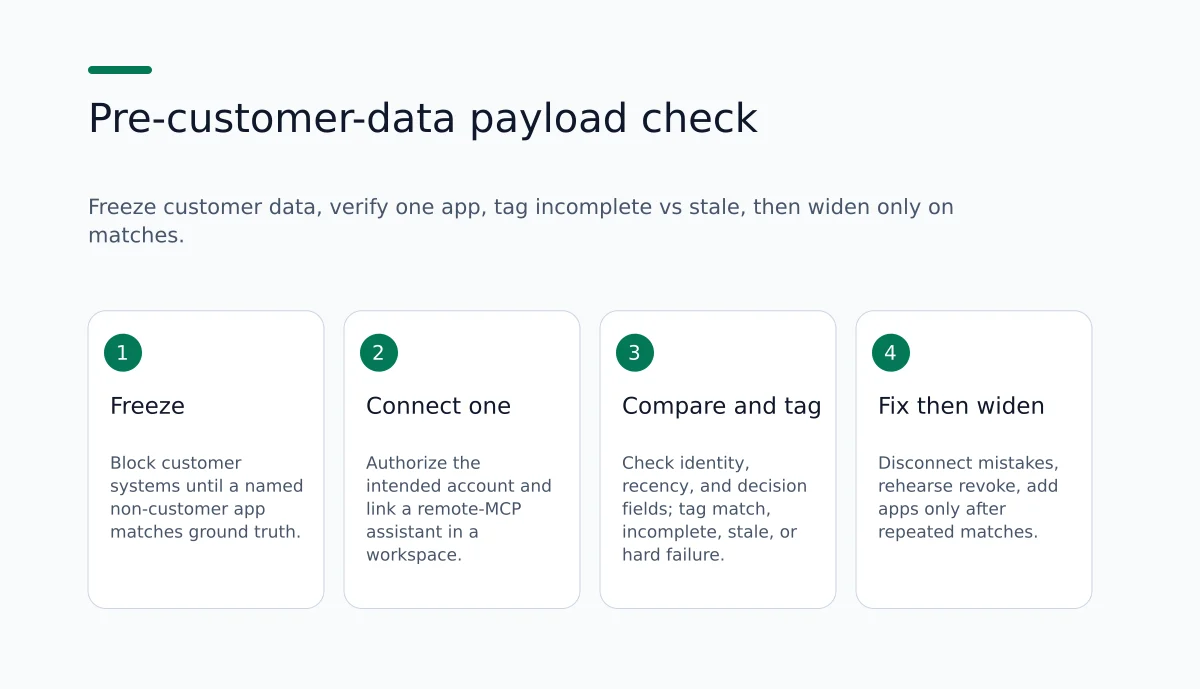
You do not fix that by granting customer data earlier. You fix the evaluation gate. Authorize one non-customer app account in a workspace, link a compatible assistant over remote MCP, ask a question with a ground-truth UI check, classify the payload failure as incomplete or stale (or wrong identity / hard failure), then disconnect or re-authorize before any second app or customer system enters scope. Ohdingle holds those app connections in one workspace so compatible assistants can use the tools available through the accounts you authorize, with permission review and disconnect controls you can rehearse on low-risk apps first.
Why the incomplete-versus-stale split matters before customer data
Teams collapse every bad answer into “hallucination” or “the model is weak.” That label sends people to prompt rewrites and larger models while the tool path still returns the wrong world.
Incomplete payload. The tool call returns something, but fields, rows, messages, or cards are missing. The model fills gaps from conversation residue or general knowledge. Customers feel odd omissions: a summary that skips the ask in the newest email, a board list that forgets the blocked column, a report that drops a channel they know exists.
Stale payload. The tool call returns a full-looking picture that is outdated, or is complete for an account that is not the one the pilot is supposed to use. The model sounds exact. Customers feel betrayal when the live inbox, board, or property shows different owners, timestamps, or rankings.
Wrong-identity payload. Closely related to stale: the connection authenticated, but to a personal mailbox, template board, or old analytics property. Numbers and names look professional. They belong to the wrong system of record.
Hard failure with fluent cover. Auth errors, timeouts, empty tool results, or mid-job tool failures where the assistant still narrates as if it checked. Customers experience confident wrongness without a visible outage.
Your pre-customer-data script must name which of these happened. Otherwise the “fix” will be the wrong layer: prompts for a connection problem, or a new customer CRM connector to “give the model more context” when the first hop was never healthy.
What customers feel, mapped to payload type
Keep the language concrete. Avoid treating pilots as non-customers. Design partners and internal champions form the same trust judgment production users will form.
Incomplete payload experience
- Missing decision field. They asked what the client needs. The assistant summarizes tone and history but never states the ask. They open the thread and see a clear request in the newest message. They now do the work the tool should have done.
- Partial board or database. They asked what is waiting on review. Two cards appear. The live board has five. They stop using the assistant for prioritization.
- Report with silent holes. Channel comparison omits a paid source the UI shows. They paste screenshots into the chat. Coordination cost rises inside the pilot itself.
Stale or wrong-identity experience
- Yesterday’s thread treated as latest. Subject lines are similar; dates are not. The user acts on old commitments.
- Owners and statuses that already moved. The assistant assigns work that the board already closed or reassigned. Meeting time is wasted reconciling.
- Professional numbers for the wrong property. Acquisition rankings look decisive and disagree with the property marketing actually uses this quarter. The experience is “this product wastes my time,” not “AI is approximate.”
Shared downstream effects
Regardless of incomplete versus stale, repeated mismatches drive the same loop: restate context, attach proof, escalate to a human, then stop asking operational questions. Support burden shifts left. Process owners block expansion into customer systems for the right security reason expressed as product distrust. Roadmaps absorb prompt and RAG work while OAuth still points at a sandbox mailbox.
None of that requires customer PII. Email, boards, analytics, ads, file stores, and similar operational apps are enough to create a believable picture. Ohdingle’s product path starts on those apps: connect business apps you use, bring connections into one workspace, and let a compatible assistant use tools available through authorized accounts. That is exactly where you can practice payload classification without touching customer records.
Distinct job versus nearby topics
Stay inside this article’s lane.
- If the assistant cannot act on apps at all, the symptom is blockage, not polished stale answers.
- If scopes are invisible, governance is the primary issue; a visible connection can still return incomplete or stale payloads.
- If a provider token expires mid multi-app job, follow the token-expiry recovery path after access is restored, then re-run this freshness script.
- Broad “what CX looks like when tools go stale” education and pure diagnose-sandbox articles already exist in the suite. Here the owned artifact is the incomplete-versus-stale verification script at the pre-customer-data gate for product developers.
Product facts you can rely on while scripting
From the current Ohdingle product page:
- Ohdingle connects business apps to compatible AI assistants. You authorize apps in a workspace, then use available tools from the assistant.
- It works with compatible AI assistants through remote MCP. You connect the assistant with workspace connection instructions and complete the assistant’s sign-in steps.
- Setup order: connect the apps you need and authorize the account you want the AI to use; add your AI assistant; use connected apps from conversation (for example latest email, project board status, traffic report comparison).
- You choose the connections. Review access requested during setup. Place connections in the right workspace. Disconnect an app from its settings when you no longer want Ohdingle to use it.
- Available tools depend on the app, your account, and permissions granted. Not every app action will be available.
- Listed starting apps include Gmail, Google Calendar, Google Ads, Meta Ads, Google Analytics, Dropbox, Monday, Klaviyo, Notion, Ahrefs, Cloudflare, and Dokploy. You can add a custom app when it exposes a compatible MCP endpoint; authentication and capabilities of that connector determine what the assistant can use.
- One app is a good place to start.
From the published billing package data:
- Ohdingle Professional is $99.00 per month (amount 9900 USD in package data).
- Marketing features and benefits include one secure AI workspace, reusable app connections, centralized permissions, activity history, compatible AI assistants, and priority support.
- Payment continues through your MaxQ account: review billing terms before payment, then return to Ohdingle to set up apps.
These facts support intentional connection control during evaluation. They do not promise perfect freshness, uptime, revenue, conversion, or ticket reduction. State that limitation in every stakeholder review.
The verification script (recommended evaluation sequence)
Treat every step as a recommendation for how to evaluate, not as a test already performed on your stack.
0. Write the freeze line
One sentence in the project brief:
“Customer-data systems stay disconnected until a named non-customer app returns matched tool-backed answers on a ground-truth question, classified for incomplete versus stale failures.”
Anyone who can add integrations should see that line. It stops “fixing” a bad hop by connecting a richer customer system.
1. Pick one app and one account identity
Choose an app whose live state you can open in a normal UI in under a minute. Good candidates already appear in Ohdingle’s starting list: Gmail, Monday, Notion, Google Analytics, Google Calendar, Dropbox, and similar. Write the account identity in plain language: company launch inbox, live launch board, property ID used this quarter. Do not accept “whoever clicked OAuth.”
Authorize that account in an Ohdingle workspace dedicated to pre-customer-data evaluation when possible. Workspace placement is part of keeping client, team, personal, and company connections from mixing.
2. Connect one compatible assistant through workspace instructions
Use an assistant that supports remote MCP. Follow the connection instructions in the workspace rather than scattering one-off credentials across clients. Reusable workspace connections exist so the same authorized account can serve the assistant under test without duplicate shadow grants you forget to revoke.
3. Author one ground-truth question per failure class
You need questions that can expose incomplete and stale failures, not vague “how are we doing” prompts.
Email (Gmail example).
“What is the subject, sender, and date of the newest message under label X, and what single action does it request?”
Incomplete: missing action or truncated body fields. Stale/wrong identity: older similar thread or wrong mailbox.
Board (Monday or Notion).
“List every item in column Y right now with owner and status label exactly as shown.”
Incomplete: partial list. Stale: yesterday’s sprint contents or template board.
Report (Google Analytics, Ads, Ahrefs).
“Name the property or account you used. What are the top three channels by sessions for the last seven days?”
Incomplete: missing channel rows. Stale/wrong identity: polished rankings for the wrong property.
Calendar.
“List event titles and start times on calendar C for date D.”
Watch secondary calendars authorized by accident.
Files (Dropbox).
“What is the latest file name and modified time in folder path P?”
If the assistant “remembers” a file from earlier chat without a successful tool read, log conversation residue, not a healthy connection.
Custom MCP app.
Ask only for an action the connector actually exposes, then verify in the source system. If the tool is not available, the assistant must not speak as if it checked. Custom endpoints still need identity and freshness checks; their authentication and capabilities set the ceiling.
If you cannot state ground truth in one screen of the source app, rewrite the question before you run it.
4. Run ask, then open the app within five minutes
Ask the assistant. Immediately open the same account view. Compare three layers:
- Entity identity: which mailbox, board, property, calendar, folder.
- Recency: timestamps, “newest,” fixed date ranges.
- Decision fields: the fields a human would act on.
5. Tag the outcome with a forced vocabulary
Use one tag only:
- match: identity, recency, and decision fields align with the UI.
- incomplete: right world, missing pieces; model filled gaps.
- stale: outdated picture of the intended world.
- wrong-identity: complete-looking data for the wrong account, board, or property.
- hard-failure-fluent: tool error, empty result, or timeout with a fluent invented answer.
- hard-failure-blocked: assistant clearly cannot use the tool (different CX; still fix connection path before customer data).
Incomplete and stale are the primary teaching split for this script. Wrong-identity behaves like stale for customers and like a connection-control defect for developers.
6. Act on the tag before you touch prompts
| Tag | First action | Do not do yet |
|---|---|---|
| match | Log evidence; consider a second matched question | Add five apps the same afternoon |
| incomplete | Re-check scopes and tool availability for required fields; re-run same question | Connect customer CRM “for more context” |
| stale | Confirm sort/recency parameters and that the tool read live state; re-run | Prompt-only tone fixes |
| wrong-identity | Disconnect from connection settings; re-authorize intended account; re-run | Leave “temporary” personal OAuth for tomorrow’s demo |
| hard-failure-fluent | Treat as connection defect; capture error; disconnect/reconnect; re-run | Ship the pilot wider |
| hard-failure-blocked | Finish MCP assistant linking and app authorization path | Expand data scope |
Ohdingle expects you to review access during setup and to remove an app connection from its settings when it should no longer be used. Use that. Customers inherit whatever identity the tool still has.
7. Prove revoke and restore on the same app
After a match, deliberately disconnect the app, confirm the assistant can no longer treat the tool as live, reconnect the intended account, and rerun one ground-truth question. This rehearses control actions on a harmless system. If you never practice disconnect on Gmail or a board, you will be slow when a future customer-data connector must be revoked.
8. Only then add a second app
Multi-app jobs fail in chains. A stale email summary that feeds a board update amplifies error. Prove one hop with repeated matches. Then add the second non-customer app under the same script. Do not interpret “one matched answer” as permission to invite a wide pilot audience while a wrong-account connection still exists.
9. Keep a minimal evidence log
Professional packaging includes activity history and centralized permissions among listed features. Whether you use product history, a ticket, or a short doc, record:
- app and account identity
- assistant under test
- exact question
- tag
- who authorized what and when
- disconnect/reconnect actions
- stay-blocked or controlled-expansion decision
That log is what you show security and product partners when you argue customer data remains out of scope, or that the next tier of systems is finally reasonable to discuss under the same script.
Copy-paste checklist for the evaluation ticket
- Freeze line for customer-data systems is written and visible.
- One non-customer app chosen.
- Intended account identity written (not anonymous OAuth).
- App authorized in the evaluation workspace.
- Compatible remote-MCP assistant linked via workspace instructions.
- Ground-truth question written with UI verification path.
- Side-by-side compare completed within five minutes of the answer.
- Outcome tagged: match / incomplete / stale / wrong-identity / hard-failure-fluent / hard-failure-blocked.
- Permissions reviewed against least access needed for pilot questions.
- Wrong connections disconnected; intended account reconnected if needed.
- Revoke-and-restore rehearsal completed once on this app.
- Second app blocked until repeated matches on the first hop.
- Notes stored for authorization and decision.
- Explicit decision: stay blocked on customer data, or schedule controlled expansion with the same checklist.
If step 7 is skipped, you do not have a freshness test. You have a demo.
Worked scenario without invented metrics
A product developer prepares an internal pilot. Customer tickets and CRM stay blocked. Allowed systems: a shared Gmail label for vendor mail, a Monday board for launch tasks, a Google Analytics property for marketing reporting.
Pilot prompts mirror ordinary connected-app work described on the product page: latest launch email and what the client needs; board items waiting on review; traffic report channel comparison.
Inject ordinary connection defects:
- Gmail authorized to a personal mailbox instead of the shared launch mailbox (wrong-identity leads to customer feeling stale operational truth).
- Monday reads a template board (wrong-identity / stale relative to live launch work).
- Analytics still authenticates but the property in the tool path is not this quarter’s property (wrong-identity with professional numbers).
The assistant can still answer all three prompts fluently. Pilot users open the three UIs and lose trust before any customer profile was exposed. The script tags wrong-identity, forces disconnect and re-authorize per app, and refuses CRM expansion until matches land on the intended accounts. The incorrect diagnosis is “the model is bad at support.” The correct diagnosis is connection identity, scope, and payload class.
Comparison: what to change when payloads are wrong
| Lever | What you change | What customers still feel if payloads stay wrong | When it helps |
|---|---|---|---|
| Prompt tuning | Instructions, tone, refusals | Fluent answers on bad payloads | After tools return the right live entities |
| Bigger model | Routing or model choice | Same incomplete or stale facts with nicer prose | Rarely fixes auth or wrong-account tools |
| More apps | Extra connectors | Larger blend of partial truths | After single-app match rate is normal |
| Customer-data grant | CRM, tickets, profiles | Higher-stakes version of the same mismatch | Only after this script passes on operational apps |
| Connection verification script | Account identity, scopes, disconnect/reconnect, workspace placement, incomplete-vs-stale tags | Fewer confident mismatches because you catch payload class in evaluation | Before customer data access |
For this buyer question, the lever is the verification script. Prompt work cannot repair a tool path that never returned the current email, board, or report.
Ground-truth question bank by app type
Gmail. Newest message under a specific label: subject, sender, date, single requested action. Similar topic words on an older thread signal stale or wrong-identity.
Google Calendar. Named calendar, fixed day: titles and start times. Secondary calendars signal wrong-identity.
Monday / Notion. One board or database, one status column: owners and status labels character for character. Partial lists signal incomplete. Prior sprint board signals stale.
Google Analytics / Google Ads / Meta Ads / Ahrefs. Fixed range plus explicit property or account name in the answer. Wrong property is wrong-identity with high customer damage because numbers look authoritative.
Dropbox. Latest file name and modified time in a path you can open. Chat memory without tool read is not a connection health pass.
Custom MCP. Only documented tools; verify in source. Missing tool availability must surface as blocked or incomplete, not as invented confirmation.
Governance lines product developers can reuse
Put three sentences in the brief:
- Identity: Which human-owned or service-owned account is allowed for each app.
- Proof: Which ground-truth question must match, and how incomplete versus stale tags are defined.
- Stop rule: If match fails, disconnect or fix the connection; do not connect customer systems to compensate.
Pair those with Ohdingle control actions from the product docs: authorize with the supported sign-in or credential method, place the connection in the correct workspace, review permissions at setup, disconnect when work changes. Centralized permissions and reusable connections help when more than one compatible assistant needs the same app access without parallel OAuth sprawl.
Design-partner script when a mismatch appears
Keep CX repair from turning into improvisation:
“We treat a mismatch between the assistant and the live app as a connection defect. We classify it as incomplete, stale, wrong-identity, or hard failure. We disconnect or re-authorize the app account, rerun the same question, and only then discuss prompt changes. Customer systems stay disconnected until this check passes on the apps in the pilot.”
That protects users from “you’re holding it wrong” and protects the team from scope expansion as a substitute for connection health.
What to measure later without inventing benchmarks
This article claims no measured ticket, churn, or conversion outcomes. When you eventually instrument a pilot, prefer measures that map to payload class:
- Share of tool-backed answers confirmed against the UI.
- Counts of incomplete versus stale versus wrong-identity tags.
- User messages that restate a fact the tool should have returned.
- Escalations whose first human reply is “checking the live system.”
- Time from a known source-system change to the first correct assistant answer.
- Connections that fail a monthly identity review.
Until those exist, the side-by-side script is enough to block premature customer-data access.
A recommended single-developer day plan
Morning. Open an Ohdingle workspace used only for pre-customer-data evaluation. Connect one app with the company account that owns the pilot data. Add a compatible assistant with workspace instructions.
Midday. Run three variants of the same ground-truth question (latest item, item by name, decision-field summary). After each answer, open the app UI. Log tags.
Afternoon. Disconnect the app from its settings, confirm tool use fails closed, reconnect, rerun one question. Rehearse revocation without customer systems.
End of day. Decide stay, hold, or expand. Expand means a second non-customer app under the same script, not CRM.
This is a recommended use of evaluation time, not a claim that your organization has already run it.
Failure modes after the first match
Teams usually go wrong by:
- Adding many apps the same afternoon.
- Inviting a wider pilot before wrong-account connections are removed.
- Storing long-lived personal OAuth grants in a shared workspace.
- Assuming activity history replaces ground-truth UI checks.
- Treating custom MCP as automatically trustworthy because it is internal.
- Scheduling model upgrades while identity is still wrong.
Discipline: match on one app, revoke test, match again, classify any miss as incomplete or stale (or wrong-identity / hard failure), then widen.
How incomplete and stale differ in remediation order
Incomplete payloads often point at scope and tool availability. The connection may be the right account, but the tool response drops fields the pilot needs. Re-check the permissions granted at setup. Confirm the assistant is calling a tool that can return the decision fields your ground-truth question requires. Re-run the same question after a scope adjustment. Do not treat incompleteness as permission to add a customer CRM “so the model has more context.” More context from a second system does not repair a first hop that never returned the client ask, the blocked column, or the paid channel.
Stale payloads often point at recency parameters, cached conversation residue, or wrong-account identity that still looks complete. Confirm the tool path is reading live state for the intended entity. Confirm sort order and date windows match the question. If the answer is complete for a personal mailbox, template board, or last quarter’s analytics property, disconnect that connection from its settings and re-authorize the intended account. Stale and wrong-identity failures feel the same to customers: precise answers that disagree with the system of record they open next.
Hard-failure-fluent cases sit next to both. The tool errored, returned empty, or timed out, yet the assistant narrated as if it checked. Capture the error path. Disconnect and reconnect. Re-run. Do not ship a wider pilot while fluent cover is still possible on a broken hop.
Hard-failure-blocked is a different customer experience (the assistant cannot act), but it still belongs on the pre-customer-data gate. Finish MCP linking and app authorization before you expand data scope. Nearby suite topics own pure blockage and pure token-expiry recovery; this script only needs you to restore access, then re-apply incomplete-versus-stale classification on a ground-truth question.
Why product developers own this gate
Security freezes protect customer records. Product developers own which non-customer apps enter the pilot, which account identities get authorized, and which evaluation tickets decide expansion. If those tickets only say “assistant answered,” the freeze will eventually lift on a path that still returns incomplete or stale payloads. The freeze then becomes a calendar event, not a quality gate.
Write the freeze line so it names the proof: matched tool-backed answers on a ground-truth question, classified for incomplete versus stale failures. Put the forced tag vocabulary in the ticket template. Require a five-minute UI compare. Require a revoke-and-restore rehearsal on the same app. Those requirements cost little evaluation time and prevent the common mistake of connecting customer systems to compensate for a bad first hop.
Workspace placement matters here. Client, team, personal, and company connections should not mix in the evaluation workspace if you can avoid it. Ohdingle’s product path supports choosing a workspace for each connection and disconnecting when work changes. Rehearse those controls on Gmail, Monday, Notion, Analytics, or another listed starting app before any customer connector is discussed.
Side-by-side compare worksheet (plain fields)
When you open the live app after the assistant answers, fill these fields once per run:
- Question text (exact).
- Intended account identity (plain language).
- Assistant name and how it was linked (workspace remote MCP instructions).
- Entity seen in the answer (mailbox, board, property, calendar, folder).
- Entity seen in the UI.
- Recency claim in the answer (newest, last seven days, date D).
- Recency in the UI.
- Decision fields in the answer.
- Decision fields in the UI.
- Forced tag (one only).
- First action taken from the action table.
- Stay-blocked or controlled-expansion decision.
If entity identity already disagrees, stop the recency debate. Tag wrong-identity, disconnect, re-authorize, and re-run. If identity matches but decision fields are missing, tag incomplete and inspect scopes and tool availability. If identity matches and the picture is full but outdated, tag stale and inspect recency parameters and live-read behavior. If the tool failed and the assistant still sounded checked, tag hard-failure-fluent. If the assistant clearly cannot use the tool, tag hard-failure-blocked and finish the connection path first.
This worksheet is the minimum evidence security and product partners should expect before customer-data scope is reopened.
Limitations to say out loud
- Compatible assistants must support remote MCP; support for individual tools and authorization methods varies by assistant.
- Not every app action is available; tools depend on app, account, and granted permissions.
- Custom MCP connectors only help to the extent their authentication and capabilities expose the right tools.
- The verification script reduces the chance you ship confident incomplete or stale answers; it does not guarantee provider API uptime, perfect answer quality, or any revenue or conversion outcome.
- Confirm plan features and pricing in your MaxQ billing flow before procurement. Professional is published at $99.00 per month with the feature names listed earlier; review billing terms before payment.
- No customer quotation, personal pilot diary, or measured CX study is claimed here.
If a vendor conversation drifts into outcome guarantees, pull it back to observable match rates and payload tags against the live app UI.
Pricing and rollout context without slogan math
If you need a shared workspace with reusable connections, centralized permissions, activity history, compatible assistant support, and priority support, review plans on ohdingle.ai and package details through your MaxQ account. Plan choice does not prove freshness. The verify-by-hand script does. Related product education lives under site guides and /blog.
Bottom line
Incomplete tool payloads make customers experience gaps and guesses. Stale and wrong-identity payloads make them experience precise answers that disagree with systems of record. Both show up before customer data access whenever tool-backed answers are allowed. Your next useful move is a one-app verification script: authorize the intended account in a workspace, connect a compatible MCP assistant, ask a ground-truth question, tag incomplete versus stale (and related failure classes), disconnect mistakes, rehearse revoke and restore, and keep customer systems blocked until matched results are normal.
When you are ready to run that first non-customer app check in a live workspace, create an Ohdingle workspace or review how connections and plans work before you widen access.