
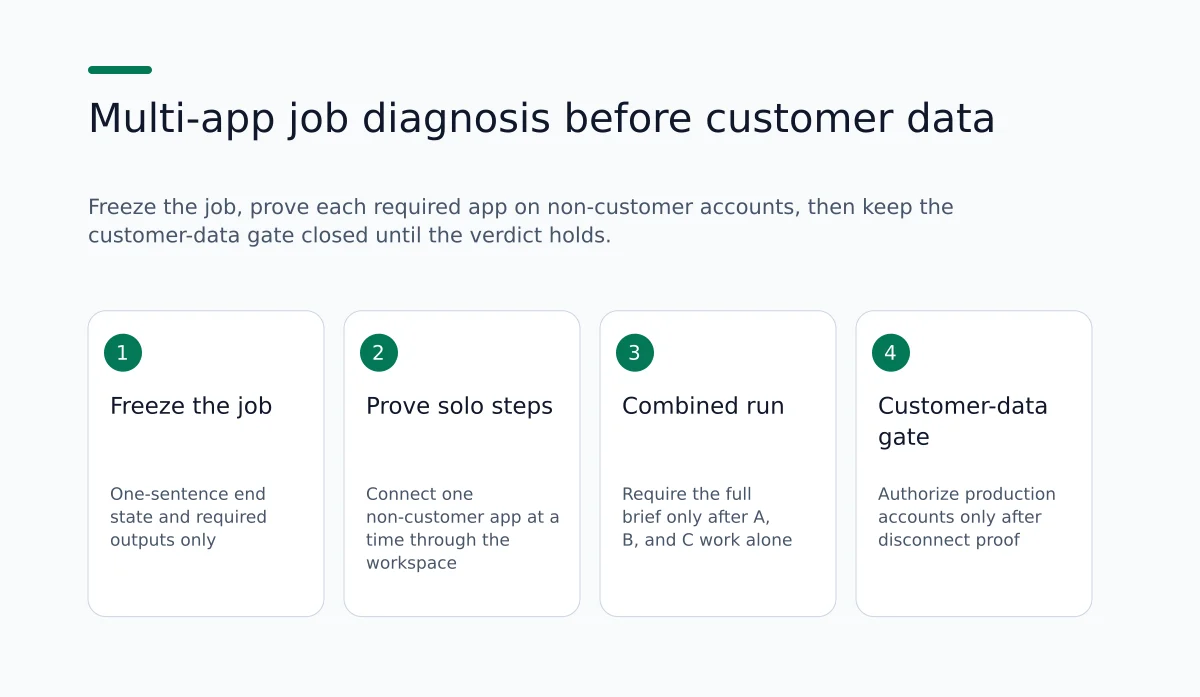
If one AI job keeps asking for Gmail, a project board, analytics, and a file store before it can finish, start by diagnosing why that job needs several apps. Use a low-risk workspace, a short dependency map, and non-customer accounts. Only after the map is stable should a team expand scopes toward customer data.
This article answers one narrow question for AI power users: how can a team diagnose why an AI workflow needs several apps to complete one job before granting access to customer data? It stays on that diagnostic step. It does not promise conversion gains, perfect tool coverage, or automatic multi-app success. It describes a concrete way to separate real multi-app work from accidental sprawl, using the connection model documented for Ohdingle.
Answer first: diagnose the job graph, not the customer data path
A multi-app AI job is a single request that cannot finish unless the assistant can use tools from more than one connected account. Typical examples on the product site include finding an email, reading a project board, and comparing a traffic report in one conversation. Those are three different systems. The assistant only reaches them after the accounts are authorized in a workspace and a compatible assistant is linked through remote MCP.
Before customer data enters the picture, diagnose four things:
- The intended end state of the job (what “done” means in one sentence).
- The minimum apps required for that end state.
- The tool actions each app must expose for the job to finish.
- The order of those actions, including which step fails if one app is missing.
If you cannot write those four items with non-customer accounts, the workflow is not ready for customer data. Expanding access early hides the real dependency problem behind consent screens and production noise.
Why multi-app jobs appear before anyone notices
Teams rarely design a multi-app job on day one. The job grows in conversation. Someone asks the assistant to summarize the latest launch email. Then they ask it to check which board items are waiting on review. Then they ask it to compare acquisition channels. Each prompt is reasonable. Together they create a chain that depends on email, projects, and reporting tools.
That growth pattern matters because each app has its own permissions and setup requirements. Available tools depend on the app, the account, and the permissions granted to the connection. Support for individual tools and authorization methods also varies by assistant. A job that “needs several apps” may actually need:
- one primary system of record and two optional lookups,
- three required systems in a fixed order,
- or one system plus duplicate connections that look like separate apps because the same account was authorized more than once in different places.
The diagnostic goal is to tell those cases apart before customer mailboxes, customer boards, or customer analytics are connected.
What Ohdingle contributes to this diagnosis
Ohdingle is a workspace for connecting business apps to compatible AI assistants. You authorize apps in a workspace, connect an assistant that supports remote MCP, and let that assistant use the tools available through those connections with the access you authorize. The documented flow is straightforward:
- Connect the apps you need and authorize the account you want the AI to use.
- Add a compatible AI assistant using the workspace connection instructions.
- Use the connected apps from conversation, within the authorized tools.
Connection control is intentional. You choose the connections. You can organize them by workspace so the right accounts are available for the work at hand. You can disconnect an app when you no longer want Ohdingle to use it. You can start with one app. You can add a custom app when it exposes a compatible MCP endpoint. Those controls are the foundation of a pre-customer-data diagnosis: keep the workspace small, keep accounts non-customer, and inspect what the assistant can actually do.
The Professional plan is listed at $99.00 per month and includes one secure AI workspace, reusable app connections, centralized permissions, activity history, compatible AI assistants, and priority support. Payment continues through a MaxQ account, where billing terms are reviewed before payment. Those commercial details matter only as setup context. They do not prove a workflow will succeed. They do tell you that reusable connections and centralized permissions are product features you can use while you map a multi-app job.
A concrete example job to diagnose
Use a synthetic launch-review job. Do not use a live customer account for the first pass.
Intended end state: “Produce a short internal brief that says what the latest launch email asked for, which board items are blocked on review, and which two acquisition channels led traffic last week.”
Candidate apps from the product’s integration set: Gmail for the email, Monday or Notion for the board, Google Analytics for the report. Optional supporting apps might include Google Calendar if the brief must note a review meeting, or Dropbox if the launch brief lives as a file. The diagnosis starts by treating every candidate as unproven.
Write the job as a dependency graph on a whiteboard or note:
- Step A: locate the latest launch-related email and extract the client request.
- Step B: list board items whose status is waiting on review.
- Step C: pull the traffic report and name the top acquisition channels.
- Step D: combine A–C into one brief.
Only steps A–C touch external apps. Step D is reasoning over retrieved context. If the assistant cannot complete A without Gmail tools, Gmail is required. If B can be answered from a pasted board export, Monday is optional for the diagnostic run even if it is desirable later. If C fails because the analytics connection lacks the needed report tool, the failure is a permissions or availability issue, not proof that five more apps are required.
This is the kind of separation multi-app diagnosis needs. “The assistant asked for another login” is not the same as “the job graph requires another system.”
Recommended diagnostic workflow before customer data
Label the following as a recommended sequence, not as a test already performed for your team.
1. Freeze the job definition
Write one sentence for the end state and a short list of outputs the human decision-maker needs. Reject open-ended prompts such as “catch me up on everything.” Open-ended prompts invite every connected app into the conversation and make dependency diagnosis impossible.
Good freeze statement: “Return a five-bullet launch brief covering client ask, blocked reviews, and top two channels.”
Bad freeze statement: “Help me run the launch.”
2. Open a dedicated workspace for the diagnosis
Use a workspace that will not hold customer production connections. Keep client and team connections in the right workspace later; for diagnosis, keep the surface area small. The product model supports organizing connections by workspace so the right accounts are available for the work at hand. Use that separation now, before customer data is in scope.
3. Connect one non-customer app that owns the first required step
Start with the app behind Step A in your graph. Authorize it with the supported sign-in or credential method and review the access requested during setup. Do not connect the full stack yet. The product guidance itself says one app is a good place to start. That advice is especially useful before customer data access, because a single healthy connection teaches you whether the assistant link, MCP path, and tool availability work at all.
4. Link one compatible assistant
Connect an assistant that supports remote MCP. Follow the workspace connection instructions and complete the assistant’s sign-in steps. Confirm that the assistant can use tools available through the connection you just authorized. If this link fails, stop. Multi-app expansion will not repair an assistant connectivity problem.
5. Run the smallest prompt that can succeed or fail clearly
Ask only for Step A against the non-customer account. Example shape, adapted from the product’s own email example: find the latest email about the launch and summarize what the client needs. Bring the message into the conversation before deciding how to respond.
Record:
- whether a tool ran,
- whether the result matched the account you authorized,
- whether the assistant claimed access it did not have,
- and whether the human still had to paste source text.
If Step A fails, diagnose that app before adding apps for Steps B and C. Adding more connections now creates false multi-app complexity.
6. Add the second app only when Step A is stable
Connect the board app with a non-customer project. Ask only for the blocked-review list. Compare the assistant’s answer with the board UI. If the assistant needs fields the connection cannot read, note the missing permission or missing tool. Do not compensate by connecting a third app that happens to contain a copied task list. That hides the real board dependency.
7. Add the reporting app last among the core three
Pull a non-customer traffic report and ask for a comparison of top acquisition channels. Confirm the assistant is using the analytics account you authorized, not inventing channel names. Available tools still depend on the app, account, and permissions. If the needed report action is unavailable, the diagnosis result is “reporting tool gap,” not “connect every marketing platform.”
8. Run the combined job once
Only after A, B, and C work alone, ask for the full brief in one conversation. Watch for new dependency claims. Common failure modes include:
- the assistant re-requests an app already connected,
- the assistant mixes personal and company accounts,
- the assistant stops at the first tool result and never reaches later steps,
- or the assistant asks for a fourth app that was never in the frozen job definition.
Each failure mode has a different fix. Re-request may mean the assistant session is not attached to the workspace connection instructions. Account mixing means workspace membership and authorized accounts need review. Early stop may mean the prompt did not require synthesis. A surprise fourth app means the job definition drifted or the assistant is compensating for a missing field.
9. Write the dependency verdict before any customer OAuth
Your verdict should look like this:
- Required apps: Gmail, Monday, Google Analytics.
- Optional apps: none for the brief; Calendar only if the brief must include the next review meeting time.
- Order: email → board → analytics → synthesis.
- Blocking permissions: list any denied scope or missing tool observed in the sandbox.
- Customer-data gate: do not connect customer accounts until the required list is stable across two successful combined runs on non-customer data.
That verdict is the diagnosis. It explains why the workflow needs several apps: because the end state truly spans three systems of record, not because the team connected everything “just in case.”
Checklist: signals that the multi-app need is real
Use this checklist during the sandbox runs.
Real multi-app need
- The end state names facts that only exist in different systems.
- Removing any required app makes a specific step impossible, not merely less convenient.
- The assistant’s tool results match the apps and accounts you authorized.
- Two consecutive combined runs succeed with the same app set.
- Optional apps can stay disconnected without blocking the brief.
False multi-app need
- The assistant asks for an app because a human prompt mentioned it, not because the end state requires it.
- A second connection exists only to bypass a permission the first connection should have had.
- The same account was connected twice under different names.
- Someone pasted exports from three tools into chat, then concluded the assistant “needs” those three live connections.
- The job definition changed mid-test from a brief into a full operating review.
Not ready for customer data
- Any required step still needs manual paste from a production system.
- Permissions were accepted without recording what was requested.
- The workspace mixes personal experiments with company shared work.
- The team cannot name which workflow fails if one provider connection is removed.
- No one has tried disconnecting a non-essential app to prove it is non-essential.
Comparison: three ways teams try to handle multi-app AI jobs
Approach A: Connect everything, then prompt
Teams authorize email, calendar, ads, analytics, files, boards, and notes in one pass, then ask a broad question. This feels fast. It is a poor diagnosis. When the answer is wrong, nobody knows which connection, permission, or prompt clause failed. Customer data risk rises immediately because production accounts are often the first accounts people connect. Use this approach only after a dependency verdict exists, and even then prefer least privilege.
Approach B: Keep the assistant chat-only and paste context
People copy emails, board screenshots, and CSV exports into the assistant. This avoids OAuth sprawl and can be fine for one-off analysis. It does not create a reusable multi-app workflow. It also trains the team to accept stale pasted context. If the long-term need is live tools through connected accounts, pasting delays the diagnosis of which live tools are actually required.
Approach C: Workspace-scoped connections with a one-job sandbox
This is the approach above. Connect the minimum non-customer apps in a dedicated workspace, link one compatible assistant through remote MCP, prove each step, then prove the combined job. Ohdingle’s model fits this path because app connections live in a workspace, permissions are reviewed during setup, reusable connections and centralized permissions are part of the Professional feature set, and you can disconnect apps when the work changes. Custom MCP apps can be added when a needed system exposes a compatible endpoint, but custom apps should enter the graph only after the core required set is known.
For the buyer question in this article, Approach C is the only one that produces an evidence-based answer to “why several apps?” before customer data access.
How to read tool limits without expanding scopes early
The product FAQ is direct: not every app action will be available. Available tools depend on the app, your account, and the permissions granted to the connection. Check those permissions before relying on a workflow. That statement is the rule for pre-customer-data work.
When a tool is missing, classify the gap:
- Authorization gap: the account can do the action in its native UI, but the connection was not granted the matching access.
- Connector gap: the connection model does not expose that action as a tool, even with broad access.
- Assistant gap: the app connection is fine, but the chosen assistant’s remote MCP support does not handle that tool cleanly.
- Job design gap: the prompt asks for an action no business system should allow an assistant to perform without a human.
Only authorization gaps invite a careful permission change. Connector and assistant gaps need a product or assistant change, a custom compatible MCP endpoint, or a redesign of the job. Job design gaps need a human step, not more OAuth. If you respond to every gap by connecting another app that holds a copy of the data, you invent multi-app complexity and still fail to explain the original dependency.
Mapping apps without turning the map into a shopping list
The product lists integrations such as Gmail, Google Calendar, Google Ads, Meta Ads, Google Analytics, Dropbox, Monday, Klaviyo, Notion, Ahrefs, Cloudflare, and Dokploy, plus custom compatible MCP servers. That list is a menu of possible connections, not a recommended set for every job.
For diagnosis, score each candidate app with three marks only:
- Owns a required fact for the frozen end state.
- Owns an optional convenience the human can supply another way.
- Owns nothing for this job.
Connect required facts first, optional conveniences never during the first diagnosis, and nothing-apps never. If a marketing team’s launch brief truly needs email plus board plus analytics, ads platforms may still score as nothing for that brief even though they are available integrations. Keeping them out of the sandbox is how you protect the dependency verdict.
Disconnection as a diagnostic instrument
Centralized permissions and activity history are listed among Professional features. Treat centralized permissions as the place where you review and keep track of what each connection is allowed to do. Treat activity history as an included workspace feature, not as a guaranteed per-run app-usage log. The sources name the feature; they do not document that the workspace automatically shows which apps were used in a specific assistant run.
After each solo step and after the combined run, review the connections and permissions you authorized in the workspace. Then disconnect a non-essential app and rerun the combined job to test whether that app was required. If the job still succeeds, that app was not required. If the job fails at a specific step, you have experimental evidence for why the workflow needs that app.
This disconnect-and-rerun step is one of the clearest ways to answer the buyer question with more than opinion. It is also safer on non-customer accounts than on production customer data. Pair it with your own notes: which prompt you ran, which account you expected, what the assistant returned, and whether a human still had to paste missing context.
Where customer data enters, and where it must wait
Customer data access is a gate after diagnosis, not a shortcut to diagnosis. Move to customer accounts only when:
- the required app list is written and stable,
- solo steps and combined runs succeed on non-customer data,
- permissions for each required connection are reviewed and recorded,
- personal and company accounts are separated by workspace as needed,
- and the team knows how to disconnect an app if the job changes.
When that gate opens, connect customer accounts deliberately, still one required app at a time if the risk is high. Keep the same frozen job definition. If the customer-data run suddenly needs new apps, stop and re-diagnose. New apps at the customer gate usually mean the job definition changed or the non-customer sandbox used unrealistic sample data.
Worked failure paths you can rehearse without customer data
The diagnostic value of the sandbox increases when you rehearse specific failure paths on purpose. None of the following requires a customer mailbox or production analytics property.
Path 1: required app missing. Disconnect the board connection after the combined job has worked once. Rerun the brief prompt. The expected outcome is a clear failure at Step B, not a confident answer invented from memory. If the assistant invents board status, the team learns that synthesis prompts need tighter instructions before customer data is involved.
Path 2: optional app removed. Disconnect Calendar or Dropbox if you connected either as a convenience. Rerun the brief. If the end state still completes, keep those apps out of the required list even if people like having them nearby.
Path 3: permission too narrow. In a non-customer analytics account, authorize only what you are willing to grant, then ask for the channel comparison. If the native UI can show the report but the assistant cannot retrieve it, classify the gap before widening scopes. A wider permission may be justified later; it is not justified by curiosity during the first diagnosis.
Path 4: job definition drift. After a successful brief, ask an expanded prompt such as “also draft customer replies and update ads budgets.” If new apps appear in the assistant’s requests, that is evidence the job changed, not evidence that the original brief always needed ads platforms. Freeze the expanded job as a separate card if the team truly wants it. Do not silently enlarge the first verdict.
Path 5: duplicate connection noise. If the same non-customer Gmail account was authorized twice, or authorized in two workspaces the assistant can reach, the assistant may appear to “need multiple email apps.” The fix is account hygiene and workspace scope, not another integration. Reusable app connections and workspace organization exist to reduce that class of sprawl while you diagnose.
These rehearsals keep the investigation on dependency truth. They also create shared language for later reviews: required versus optional, authorization gap versus connector gap, frozen job versus drifted job.
How to write the dependency verdict so another teammate can use it
A verdict that only lives in one person’s head fails as soon as someone else wants to connect customer Gmail. Write the verdict so a teammate can apply the customer-data gate without replaying the entire sandbox.
Include:
- Job name and owner. Example: “Launch brief v1,” owned by the operator who freezes prompts.
- One-sentence end state. Copied exactly from the freeze statement.
- Required apps and why. Name the system of record for each required fact, not just the vendor logo.
- Step order and failure point. State which step dies if each required app is removed.
- Observed gaps. Authorization, connector, assistant, or job design, with the date observed.
- Optional apps explicitly rejected for v1. Rejection is part of the diagnosis.
- Customer-data gate checklist. The conditions that must already be true, written as pass/fail lines.
- Disconnect proof. Which non-essential app was removed, and what happened to the combined job.
Keep the verdict next to the workspace where the non-customer connections live. When someone proposes production access, the gate checklist is the agenda, not a side note.
Separating assistant limits from app limits during diagnosis
Multi-app confusion often mixes two different problems. One problem is that the business job spans several systems of record. The other is that the chosen assistant cannot cleanly use a tool that the connection exposes. The sandbox should separate those problems.
Signals that point to an assistant limit include failed remote MCP setup, tools that never appear after a healthy app authorization, or inconsistent behavior after you confirm the same account works in its native UI and the connection permissions look correct. Signals that point to an app or permission limit include a clean assistant link paired with a specific denied action, an empty result that matches a missing scope, or a connector that simply does not expose the native feature you need.
The practical response differs. Assistant limits may require a different compatible client, a fresh link using the workspace connection instructions, or a pause until remote MCP support is adequate for the tool. App and permission limits may require a narrower redesign of the job, a recorded permission change on a non-customer account, or a custom compatible MCP endpoint when the system is outside the listed integrations. Crossing the streams produces the worst outcome: more production OAuth in hopes that another login will fix an assistant transport problem.
When a human step should stay in the job on purpose
Not every gap should be closed with another connection. Some actions should remain human even after the multi-app map is clear: sending a customer commitment, changing a paid budget, deleting records, or approving external messaging. During diagnosis, mark those steps as human gates in the job card.
A human gate is different from a paste workaround. A paste workaround means the assistant could not read a system it was supposed to read. A human gate means the business does not want the assistant to act without review. Writing that distinction into the verdict prevents two failure modes later: treating every manual step as an integration defect, and treating every integration success as permission to act on customer data without review.
For the launch-brief example, synthesis into five bullets can be assistant-led after A–C succeed. Sending the brief to a customer thread, or changing campaign settings because channel mix shifted, can remain human. The multi-app diagnosis still holds. The customer-data gate still holds. The team simply refuses to confuse “can retrieve” with “may act.”
Limitations you should expect
Ohdingle connects business apps to compatible AI assistants; it does not make every native app action available as a tool. Compatibility depends on remote MCP support in the assistant you choose. Custom apps are possible when they expose a compatible MCP endpoint, but their authentication and capabilities determine what the assistant can use. Billing runs through MaxQ account review before payment. None of these facts guarantee that a given multi-app brief will complete without human review.
This article also does not measure your current failure rate, estimate hours saved, or claim that reusable connections alone remove multi-app complexity. Reusable connections and centralized permissions help a team avoid duplicate sprawl while they diagnose. They do not replace the job graph, the sandbox order, or the customer-data gate.
If your assistant cannot use remote MCP, this workflow cannot start as described. If your required system has no compatible connection path, the diagnosis may conclude that the job remains human-led or needs a custom compatible endpoint before an assistant can participate. Activity history is listed as a Professional feature; do not assume it provides a complete per-prompt map of tool calls unless you have verified that behavior in your own workspace. Rely on the disconnect-and-rerun method and written run notes for dependency proof.
Practical artifacts to keep after the sandbox
Leave the diagnosis with four short artifacts:
- Job card: end state, outputs, owner, and non-goals.
- App verdict table: required, optional, rejected, with the reason for each.
- Step order: the sequence that failed when reordered or when an app was disconnected.
- Customer-data gate note: the exact conditions that must be true before production customer accounts are authorized.
Store them where the team that owns assistant access can find them. The next person who wants to connect customer Gmail should see the gate note first.
Related reading and internal next steps
If you are still choosing how to connect assistants with visible permission boundaries, start from the product overview on the Ohdingle home page and the broader guides index on the blog. For commercial setup details, review the live Professional package terms in your MaxQ billing flow before you pay. For the diagnosis itself, stay on one workspace, one assistant, and the minimum non-customer apps until the dependency verdict is clear enough that two teammates give the same required-app list.
One useful next action
Create a dedicated Ohdingle workspace for a single frozen job, connect only the first non-customer app behind Step A, link one compatible assistant, and record whether that solo step works before you authorize anything that holds customer data. If you are ready to open that workspace, start with Ohdingle and keep the customer-data gate closed until your required app list survives a disconnect-and-rerun check.
The diagnosis is a written job map and proven required systems under the access you authorize. Decide on customer data only after that verdict is stable.