
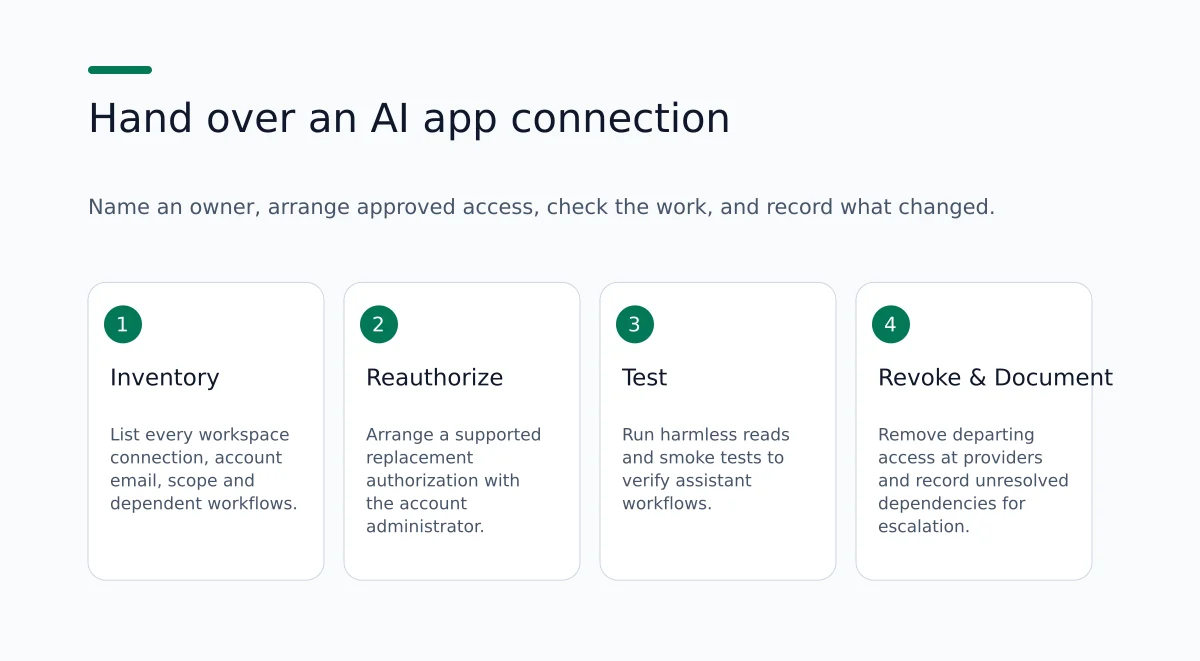
If a teammate who connected apps to your AI workspace is leaving, follow a short, repeatable handover: inventory every connected account, name a business owner for each connection, arrange an approved replacement authorization using an account the business is entitled to use, perform a harmless read to confirm the AI can still access the needed data, remove the departing user's account access at each provider, verify the assistant still works for the key workflows, and document any unresolved steps or permissions that require vendor help.
Why this matters
Ohdingle organizes connected accounts into workspaces and makes those connections available to compatible AI assistants; you can disconnect connections from workspace settings when work changes (https://ohdingle.ai/). Do not assume an individual user's authorization can be transferred to another person. Provider-level behavior, such as whether an OAuth consent can be moved, whether SSO or admin reauthorization is required, and whether long-lived API keys exist, varies by vendor. Use the steps below to preserve continuity and reduce the chance of service disruption.
Quick summary of the 8-step handover
- Prepare: schedule handover, collect access context and list of integrations.
- Inventory: record every Ohdingle workspace connection and the underlying provider account.
- Assign a business owner: a named person responsible for continuity.
- Replace individual authorizations: prefer company-controlled or service accounts.
- Harmless read: run a safe read-only check to confirm assistant access.
- Remove departing access at the provider: revoke old credentials or remove the person.
- Re-run workflow tests: verify the assistant can perform the critical tasks.
- Document and escalate unresolved issues.
Detailed steps and practical examples
1) Prepare
- Book a 60-minute handover slot during the departing teammate's final week. Include the IT or operations lead and the named business owner for each connection.
- Ask the departing teammate to export or list all places they used to connect apps (Ohdingle workspace name, provider dashboards, SSO admin console, notes about delegated permissions). If they cannot list them, proceed immediately to an inventory step using Ohdingle workspace settings.
Why: Early scheduling ensures the departing person is available to perform approved reauthorization steps, or to confirm what they did when they first connected an app.
Practical tip: Keep a written record of the account and connection involved. Record the permission names when available, but keep passwords, tokens, and unrelated private records out of the handover document.
2) Inventory connections
Goal: Create a single record showing every Ohdingle workspace connection and the underlying provider account, plus the purpose of each connection.
How to do it
- Open your Ohdingle workspace and list connected apps. The product emphasizes organizing connections by workspace so the right accounts are available for the work at hand (https://ohdingle.ai/).
- For each connection, record: provider name (e.g., Gmail, Notion), account email or ID used, connection scope/permissions (as shown during OAuth consent if available), who authorized it, when it was authorized (approximate), and what assistant workflows depend on it.
Hypothetical inventory entry
- App: Gmail
- Provider account: [email protected]
- Authorized by: [email protected]
- Permissions: record the exact permissions actually shown for your connection
- Used by workflows: generate weekly lead summaries, fetch latest inbound customer messages
- Business owner: marketing lead (to assign)
Notes on scope and visibility: Many providers list the scopes requested at authorization. If that information is not available in the provider console, consult the provider documentation or ask the account administrator. The absence of a visible permission list is an unresolved question, not evidence that access is narrow.
Inventory best practices
- Make the inventory a single source of truth: a spreadsheet, a shared doc, or a ticket in your ops tracker. Include links to the provider's app or connected-app page where tokens or grants appear.
- Mark critical vs. nice-to-have: label any connection that, if lost, will stop revenue or customer-facing activity.
- Track automation dependencies: look for scheduled jobs, cron tasks, or Zapier/Make workflows that reference the account.
3) Assign a named business owner for each connection
Why: A business owner is the person responsible for keeping the connection useful, arranging authorized changes, and following up when it stops working.
Rules of thumb
- Name the person responsible and a backup role, such as the operations lead. An inbox can receive notices, but it cannot take responsibility for completing the work.
- Record the approved provider account separately from the person responsible for it. An account choice must fit the provider's supported authorization method and your organization's access rules.
Record who will accept ownership and the acceptance timestamp in the handover record.
Ownership responsibilities
- Keep credentials in the company password manager when possible.
- Accept notification responsibilities for token expiration alerts and monthly reviews.
- Own the reauthorization and rotation schedule.
4) Replace individual authorizations where possible (time depends on provider)
Choose a replacement account and authorization method with the provider administrator. A work email address, a shared mailbox, a service account, and an application identity are different things. One cannot be substituted for another without checking whether the connector supports it and whether it can access the required business data.
The replacement user should complete the provider's supported sign-in or authorization process with their own authorized access. Do not pass the departing person's password to a colleague or assume their personal account becomes a company account. If a connector requires a managed credential, use your organization's approved storage and access process.
The Ohdingle product overview explains that each app has its own permissions and setup requirements. It also says the available tools depend on the app, the account, and the access granted. Confirm those details for the connection you are replacing before scheduling the change.
If the new account cannot see the required business records, resolve that with the relevant administrator. A successful sign-in alone does not establish access to the right mailbox, project, or report. Keep the old and new account identifiers in the handover record so a colleague can distinguish them during the checks.
Planning the replacement
- Prioritize connections that are critical, have broad permissions, or are used by scheduled jobs.
- For complex integrations (e.g., billing systems with webhooks), run a parallel test after reauthorizing to confirm webhooks and callbacks are still valid.
5) Run harmless read checks
Purpose: Confirm the assistant can access the expected data without performing changes.
Safe read checklist
- Identify one non-destructive query that proves access, e.g., "List the three most recent inbound contacts from the last 7 days" or "Show the last five tasks assigned to the marketing board."
- Use the assistant to execute that read. If the assistant returns the expected results, document the timestamp and sample output.
- If the assistant cannot read, capture the error message and the provider console logs if available.
Support reference: Because Ohdingle surfaces connected-app data to compatible assistants, a read check can help reveal whether the required account data is available (https://ohdingle.ai/).
Harmless-read examples (concrete prompts)
- "Show me the five most recent emails in [email protected] with the label 'inbound' and include sender and subject."
- "List open tasks on the Marketing board where status is 'Waiting on Review.'"
- "Read the title of the agreed test item in the connected project board."
What to capture
- A concise result showing whether the expected test item was found. Keep unrelated customer data out of the handover record.
- Any error or access-denied message shown by the assistant.
- Provider console logs or events that correlate to the read attempt.
If results are empty or show an authorization error, record the assistant response exactly and consult the provider’s connected-app console for token issues.
6) Remove departing access at the provider
Why: Disconnecting the departing user reduces risk from lingering personal access and prevents future confusion. This is a separate step from disabling access in Ohdingle’s workspace, which only affects what the assistant can access through its connections.
Steps
- Have an authorized administrator remove the departing person's company access according to the departure plan. Do not modify or take ownership of their personal accounts.
- Identify grants or managed keys tied to the departing user and have the authorized administrator retire those that should end, checking their other consumers first.
- If the provider supports per-application revocation, revoke the specific application access tied to the workspace connection.
- Confirm that the account used for the Ohdingle connection is now owned by the business account or has been reauthorized by the business owner.
Example: If a business connection relies on a departing employee's personal account, coordinate a permitted transition of the business work with that person and the company administrator. Confirm access to the needed records through the replacement connection. Do not assume you can administer the personal account.
Operational checklist for revocation
- Disable sign-in for departing employee accounts where company policy allows.
- Revoke app-specific tokens for apps that list "Connected apps" separately from user accounts.
- Rotate any API keys stored in automations and update the consumers of those keys.
7) Re-run workflow tests and smoke tests
Focus on the critical flows that must remain working. Build a minimal test script for each workflow and run it end-to-end.
Suggested test script items
- Assistant reads the latest customer message and returns a one-paragraph summary.
- Assistant inspects a project board and lists items waiting on review.
- Assistant pulls the latest report and summarizes the top two metrics.
Build acceptance criteria
- Define what a successful read looks like (e.g., summary contains customer name and the date of last contact).
- Decide acceptable latency for responses; some reauthorizations introduce caching delays.
Document failures and link them to the inventory entry where the cause may be missing scope, provider admin consent, or a required scheduled credential.
8) Document unresolved dependencies and escalate
If any step fails because of provider-level restrictions (for example, admin consent required, or OAuth consent cannot be moved between accounts), document the specific provider, the error text, and the required action: SSO admin consent, provider support ticket, or setting up a new service account.
Create a final handover record containing:
- Inventory table (connections, provider account, scope)
- Business owner name and contact
- Harmless read timestamp and result
- Smoke test results
- Actions still open and responsible owner
- Date to review the handover (e.g., 30 days later)
Example edge cases and how to handle them
Edge case: Connection used a personal social or consumer account (e.g., a personal Gmail) Action: Replace with a company account. If needed business records remain in a personal account, agree on a permitted transfer with the account owner and the appropriate company administrator before proceeding. Do not copy unrelated personal data.
Edge case: Provider requires admin consent or domain-wide reauthorization Action: Open a ticket with your SSO or provider admin. Document the consent screens and scopes and ask the admin to approve the requested scopes for the organizational domain.
Edge case: Scheduled jobs or automation use stored personal API keys Action: Identify all automations and replace API keys with centrally managed service credentials. Rotate keys as part of handover.
Edge case: Multiple AI assistants or clients require the same app but have separate connections Action: Identify which connection each assistant uses. Check each authorized assistant separately after replacing the connection rather than assuming one successful test covers them all.
Usable handover worksheet (copy this into a spreadsheet)
- Columns: app, provider_account, authorized_by, scopes_shown, workspace_connection_name, business_owner, harmless_read_prompt, harmless_read_result, smoke_test (Y/N), smoke_test_notes, provider_revoked_departing_user (Y/N), reauthorize_required (Y/N), next_action, owner_of_next_action, due_date
Hypothetical spreadsheet row; replace the sample results with your actual checks
- App: Gmail | provider_account: [email protected] | authorized_by: [email protected] | scopes_shown: read-only mail | workspace_connection_name: marketing-workspace-gmail | business_owner: [email protected] | harmless_read_prompt: "Show five most recent inbound" | harmless_read_result: "3 messages returned" | smoke_test: Y | smoke_test_notes: "Summary contains lead names" | provider_revoked_departing_user: Y | reauthorize_required: N | next_action: n/a | owner_of_next_action: n/a | due_date: n/a
A compact printable checklist
- [ ] Inventory complete for all Ohdingle workspace connections
- [ ] Business owner assigned and accepted
- [ ] Personal authorizations replaced or documented as exception
- [ ] Harmless read performed and recorded
- [ ] Departing user access removed at provider
- [ ] Smoke tests passed for critical workflows
- [ ] Outstanding items documented and owners assigned
How to handle an incomplete handover
Keep a connection marked incomplete until its owner can explain what is still missing. For example, the replacement account might read one project while a second project remains unavailable. Record the specific missing project and who can grant the intended access. Avoid resolving the issue by requesting every available permission.
If the departure happens before the change is ready, follow the organization's access-removal decision and record the resulting service interruption. A continuity goal does not authorize keeping a former employee's access indefinitely. Tell the people relying on the affected workflow which task needs a temporary manual process and who owns its restoration.
Treat provider help as a concrete next step. Include the connection name, the supported task that fails, the time checked, and a redacted error message. Keep credentials out of support notes. Ask about the required account or permission rather than assuming that another login attempt will solve it.
Limitations and what to expect
- Exact controls differ by provider. You may need help from your SSO admin or the provider support team for tenant-wide consent or to migrate data from a personal consumer account.
- Disconnecting a connection and removing a person's direct provider access are separate changes. Confirm which action your administrator has completed before marking the related checklist item done.
- Some long-lived tokens or API keys may be embedded in automations; those must be found and rotated manually.
Troubleshooting common errors
- "Access denied" from assistant read: Check whether the reauthorizing account has the same folder/board/mailbox permissions.
- "Token expired" in provider logs: Reauthorize the connection and then run the harmless read again.
- Webhook failures after reauthorization: Confirm webhook endpoints and secrets were preserved or updated during reauthorization.
Finish with a record another person can use
Ask the backup owner to read the handover record and identify the current provider account, the connection used by the assistant, the last successful check, and any open dependency. If they cannot tell which account is current, improve the record before calling the transition complete.
Set the next review around a real event, such as a provider notice, another staffing change, or a change in the work the assistant performs. A calendar reminder can help, but its purpose is to check whether ownership and access still match the work. Keep old results as history and mark the date of the latest check clearly.
Start with one connection your team depends on and name its owner. You can browse the Ohdingle guides while preparing the plan, then review the product and connection approach for your intended setup.